Your Backup App Had the Keys to Your Email
Quick question: how many apps have permission to read your company email and files right now? If you hesitated, you are in good company. This week showed why that number matters.
What happened
Reports this week say attackers stole a credential for ConnectWise Cloud Backup, a tool many IT providers use to back up their clients’ Microsoft 365 email and files. Because the backup app was trusted, the attackers could use it to get into customer accounts. Security firm Huntress reportedly saw about 1,000 sign-in attempts, and around 300 worked. ConnectWise took the product offline on October 17. Microsoft has since pointed to a China-aligned group it calls Storm-0940, which it says reached more than 2,250 accounts.
Think of it like a locksmith’s master key. You gave one trusted company a key so they could do a job. When someone stole that key, they did not have to break your door.
Why this matters even if you never heard of that product
Your business has more connected apps than you think
Backup tools, CRM add-ons, calendar helpers, AI note-takers, e-signature tools. Many of them were approved once, by one person, years ago, and nobody looked again. Each one can hold a standing permission to your mail, your files, or both.
A password reset is not enough
Reports say that in some accounts the attackers gave themselves admin roles and added new credentials to other trusted apps. Those changes can stay in place like a spare key under the mat, even after the original problem is fixed. This is the same pattern I wrote about in what ransomware gangs do after they get in: they dig in before anyone notices.
This is the road to business email compromise
Once someone sits inside your mailbox, they can read real conversations, change payment details, and send believable messages from your own address. That is how small businesses lose real money.
What you can do this week
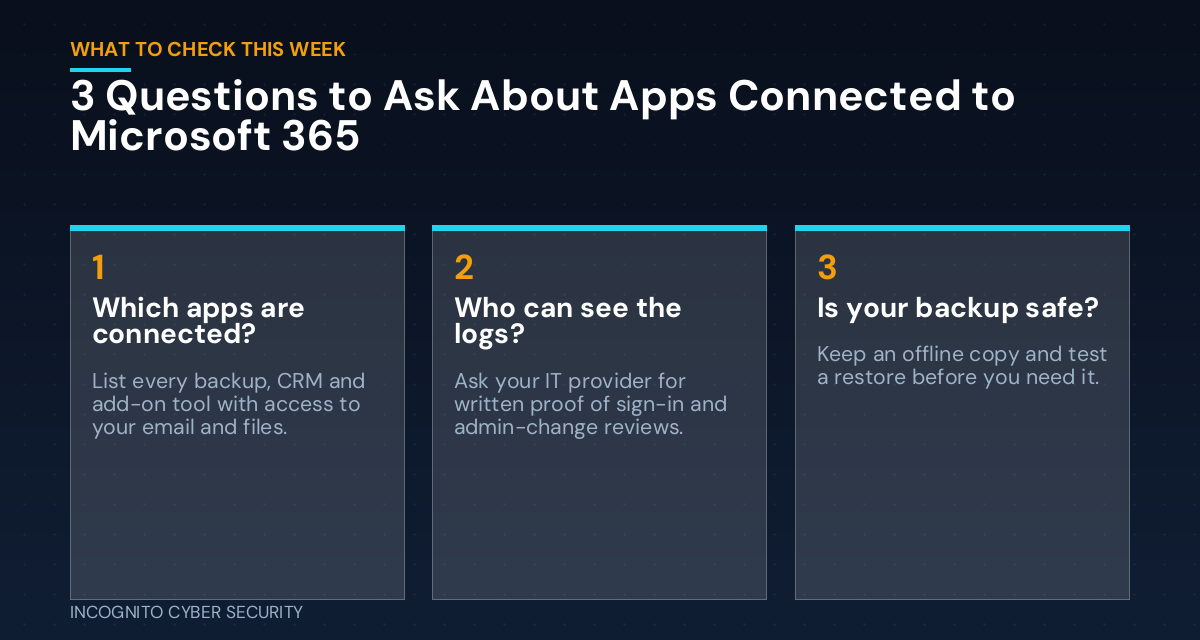
- Ask your IT provider one direct question. “Did we use ConnectWise Cloud Backup or SkyKick, and is it disconnected from our Microsoft 365?” Get the answer in writing.
- List every app connected to your Microsoft 365. Your admin can see this in the admin center. Remove anything nobody can explain.
- Check for changes you did not make. New admin roles, new mailbox forwarding rules, and new app credentials since mid-October are the red flags.
- Disable, do not just delete. If you find a suspect app, turn it off and keep the records so they can be reviewed.
- Confirm your email has been backed up recently. If your backup tool was paused, find out when it resumes and what coverage you have in the meantime.
- Keep one offline copy and test a restore. A backup you have never tried to restore is a hope, not a plan. Our secure data backups are built around this.
- Make app reviews a habit. Put a quarterly reminder on the calendar to review who and what has access. Pair it with staff awareness training so people know not to approve unknown app requests.
The bottom line
You can do everything right and still be exposed through a trusted vendor. You cannot control their security, but you can control what they are allowed to touch and how quickly you would notice something odd. The goal is not to fear every app. It is to know which ones hold a key, and to take back the ones you do not need. I covered the wider vendor angle in this earlier post on software vendor risk, and our small business cyber security solutions cover this kind of review. For a wider look at what is on your devices, see endpoint protection and spam and virus filtering, and you can browse more on the blog.
We will review your connected apps and backups for free.
Send us a message
— Nemuel Cruz, Incognito Cyber Security
Sources: TheStreet, Oct 28, 2026; The Hacker News ThreatsDay.