The Real Microsoft Login Page That Hands Hackers Your Email
We spend a lot of time teaching people to check the web address before they log in. Is it really microsoft.com? Is the padlock there? Good habits. Keep them.
But this week Microsoft announced it had disrupted a criminal service called EvilTokens, and the way it worked should change how you think about “safe” logins. The victims didn’t type their password into a fake page. They logged in on the real Microsoft page, passed their multi-factor check like normal — and still handed over their mailbox.
According to Microsoft, EvilTokens compromised more than 12,000 email inboxes at over 10,000 organizations, including construction companies, wholesalers, real estate offices, financial firms, and healthcare. Those are exactly the kinds of businesses I work with here in Southern Arizona.
What is device-code phishing?
You’ve probably used the legitimate version of this without thinking about it. When you sign into Netflix on a smart TV, or set up a conference-room device, the screen shows a short code and tells you to go to a web page on your phone or computer and type it in. That’s a “device code.” It lets a device without a keyboard borrow your login.
Device-code phishing flips that around. The attacker requests a code for their device, then tricks you into typing it in. The moment you do, your account is connected to their machine.
What it looks like in your inbox
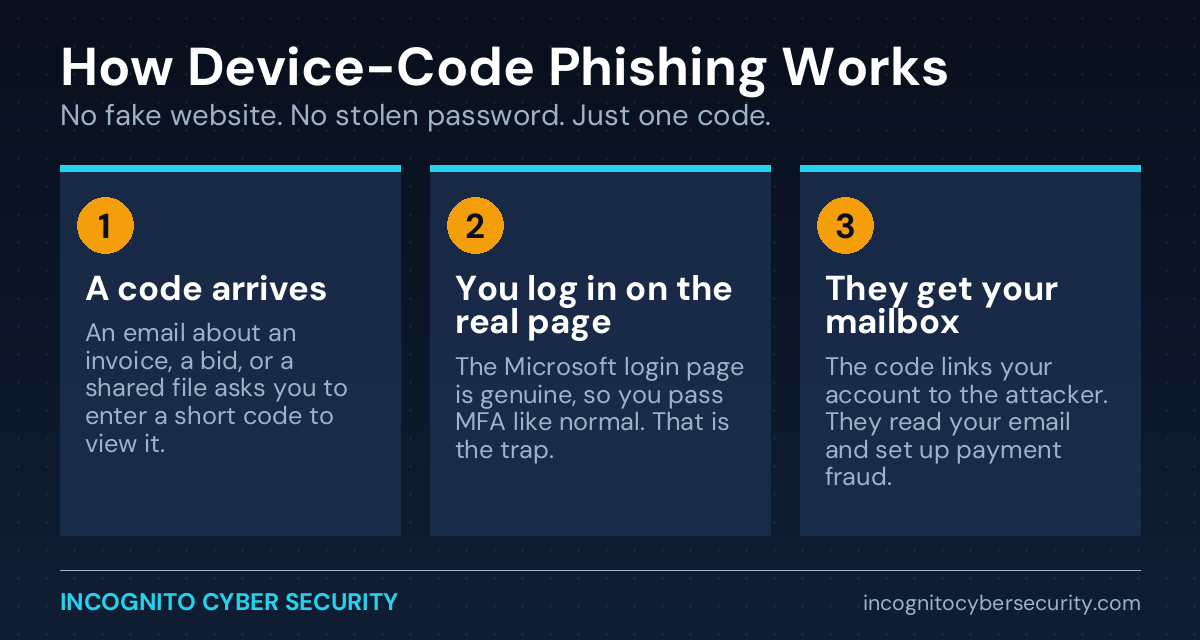
The emails are ordinary business mail: a construction bid, a partnership agreement, a shared file, an invoice, a voicemail or eFax notice, a benefits update, a “your password is expiring” warning. The message says you need to enter a short code to view the document, and gives you a button that goes to Microsoft’s genuine sign-in page.
Why it gets past MFA
Because you really are signing in. You type your password on the real site, you approve the prompt on your phone, and everything looks correct. What you don’t see is that you just approved a login for someone else’s device. The attacker never needed your password — they got a working “token” that keeps them logged in.
This is different from the push-notification trick I wrote about in The Login Request You Should Never Approve. There, the attacker already has your password and spams you with prompts. Here, you start the login, which is why it feels so normal.
What happens after they’re in
This is the part that costs money. Once EvilTokens had a mailbox, it used AI tools to read through it and find the valuable stuff: wire instructions, pending invoices, and conversations with the owner or the bookkeeper. Then it wrote convincing follow-up emails from inside your real account.
Picture a vendor getting an email from your actual address, in the middle of an actual thread about an actual invoice, saying the bank details have changed. That’s not a spam filter problem anymore. That’s a payment going to the wrong place.
The service is down. The technique isn’t.
Microsoft seized about 50 websites tied to the operation, and two men were arrested in the U.K. That’s good news. But BleepingComputer reports that copycat kits are already out there, and at least ten phishing services supported this method by spring. Expect to keep seeing it.
What you can do this week
- Tell your team one simple rule. If an email asks you to type a code into a Microsoft page to open a document, stop. Real invoices and shared files don’t work that way. Add it to your security awareness training.
- Turn off device-code sign-in if you don’t use it. In Microsoft 365, this can be blocked for everyone except the few devices that truly need it, like conference-room gear. Most small offices can block it entirely.
- Check your inbox rules. Attackers often create hidden rules that move or delete replies. If you see a rule you didn’t create, treat it as a break-in.
- Verify any change in payment details by phone. Use the number you already have on file, not the one in the email. This one habit stops most of the damage even when an account is compromised.
- Move key people to passkeys or security keys. Start with the owner and whoever handles money. These are much harder to trick than codes and push prompts.
Good email filtering will catch a lot of these messages before anyone sees them, and endpoint protection helps spot unusual activity on your computers. But the settings change in step 2 is what actually closes the door.
The bottom line
“Check the web address” is still good advice, but it isn’t enough anymore. This attack uses the real login page on purpose. The warning sign is not the website — it’s being asked to enter a code you didn’t ask for.
The fix is a mix of one habit and one setting. Teach the habit, flip the setting, and verify payments by phone. If you’re not sure whether device-code sign-in is turned on for your business, that’s a five-minute check for us. It’s part of how we approach small business cybersecurity: close the doors attackers are actually using right now.
Free Microsoft 365 Check
Is device-code sign-in open on your account?
We’ll review your Microsoft 365 sign-in settings, look for suspicious inbox rules, and tell you in plain English what to change. No obligation, no sales pitch.
More plain-English security articles for business owners are on our blog.
Sources: Microsoft Security Blog; BleepingComputer.
Send us a message
Questions about your Microsoft 365 settings, a suspicious email, or anything else in this article? Send us a note and we’ll get back to you.
— Nemuel Cruz, Incognito Cyber Security